Tracking Email Status in Podio with GlobiMail
You can’t follow up on what you can’t see and GlobiMail gives you that visibility into your outgoing emails. See who received them, who opened them, and who ghosted you. If you’ve ever wondered why a client never replied, this is the feature that may save you that guessing game.
Why Tracking Matters
In business, communication often drives workflow. But once an email leaves your outbox, the trail can go cold fast. GlobiMail closes that loop by tracking delivery and engagement, updating your sent message with live status data. This means you always know whether your message:
- Delivered successfully
- Opened by the recipient
- Bounced or failed to deliver
- Clicked any embedded links
That visibility keeps your workspace focused and no more “I never got your email” mysteries.
How GlobiMail Tracks Email Status
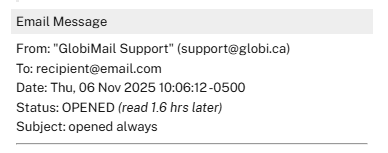
When you send an email through GlobiMail, it automatically adds a hidden tracking pixel and monitors delivery through its secure mail servers. The results appear right inside your Podio item Activity as part of the email comment, and GlobiMail will update that same comment as new data comes in.
Examples:
- “Status: DELIVERED”
- “Status: OPENED (read 11.6 hrs later)”
- “Status: BOUNCED (554 5.7.1: Recipient address rejected)”
No need to dig through logs or dashboards. The latest info is always visible where you actually work.
Automating Status Updates
GlobiMail Automations can trigger actions when an email’s status changes. For instance:
- When an email is opened, update a Podio field to “Customer Viewed.”
- When an email bounces, change the item’s status to “Delivery Error.”
Using Podio Workflow Automation, you can build more complex chains. You can:
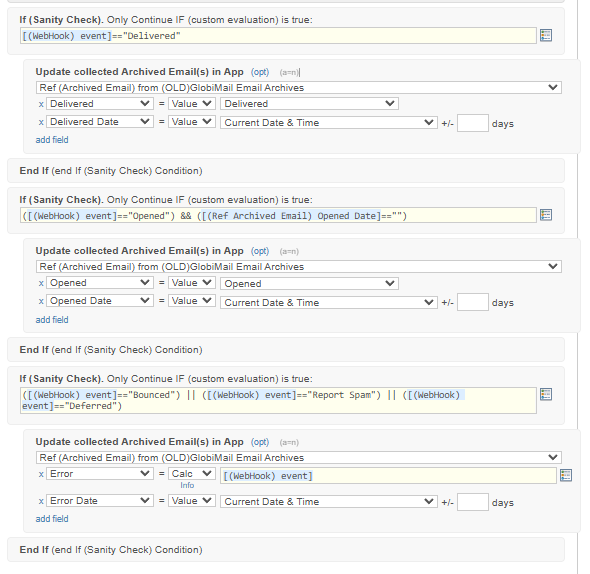
- Send a webhook from GlobiMail to your PWA endpoint to do things with the data.
- If an open is detected but not responded after a few days, trigger a follow-up reminder.
- If there is a hard bounce, remove this contact from your mailing list.
It’s the moment your tracking stops just watching and actually starts working for you.
Tracking Unread and Unresponded Emails
GlobiMail doesn’t just tell you what happened - it gives you the data to act on it.
Create a Podio view that filters for items where:
- “Email Status ≠ Opened” → to find unread messages
- “Last Outgoing Email Sent X days ago AND No Incoming Email” → to find unresponded threads
It’s a lightweight way to keep your communication loops tight and your support queue up to date.
Examples
Example 1: Email comment showing live status update (Delivered → Opened).
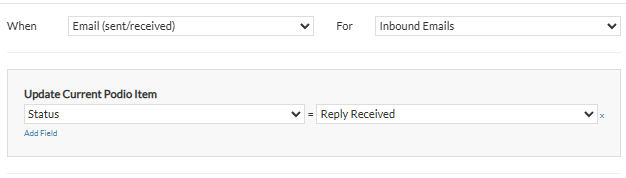
Example 2: GM Automation on Incoming Emails to set a Category field.
Example 3: Webhook Automation setup in PWA to set Sent Email Status.
A Note on Accuracy
Open tracking isn’t an exact science. GlobiMail (like every email platform out there) uses a tiny hidden image pixel inside the email body to record when a message is opened. If the recipient’s email client blocks images by default, or if the user reads the email only in a text preview pane, that open event will not register.
In other words, you’ll always get accurate delivery data, but open rates will never be 100% complete. Treat open rates as hints, not hard facts.
Resources
 by
Andreas Huttenrauch
by
Andreas HuttenrauchOwner of Globi Web Solutions, and Podio Fanatic.
comments powered by Disqus

Podio Alternative

InfoLobby is our new Cloud Database and Collaboration Platform. It's like Podio with GlobiFlow and GlobiMail built-in.
Why not try a 30 day free trial?
Podio Workflow Automation
Want to automate your Podio Workflows? Check out GlobiFlow for Podio